Press "Enter" to skip to content

Category: around the house

NGINX on OPNsense for Home Assistant

I’ve been experimenting with Home Assistant (HA) for some temperature monitoring around the house. It has a great mobile client that’ll work across the public internet, but HA itself unfortunately it only does HTTP by default. It has some minor built in support for HTTPS by using the NGINX proxy and Let’s Encrypt (LE) Add-ons, but for a couple of reasons[1] I didn’t like this solution. I’m not about to expose something with credentials across the public internet via plain HTTP, so I wanted to do this proxying on my firewall instead of on the device itself.

My firewall at home runs OPNsense which has an NGINX Plugin, along with a full featured ACME client that I’m already using for other certificates, so it was perfect for doing this forwarding. After a bit of frustration, fooling around, and unexpected errors I got things working, so I wanted to share a simple summary of what it took to make it work. I’m leaving the DNS, certificate, and firewall sides of this out, as they’ll vary and are well documented elsewhere.

Here’s the steps I used:

  • Set up DNS so the hostname you wish to use is accessible internally and externally. In this example homeass.site.nuxx.net will resolve to 24.25.26.13 on the public internet, and 192.168.2.1 at home, which are the WAN and LAN interfaces on the OPNsense box.
  • Set up the ACME plugin to get a certificate for the hostname you will be using for, in this case homeass.site.nuxx.net. Also set up an automation to restart NGINX, and have it do this when the cert is issued.
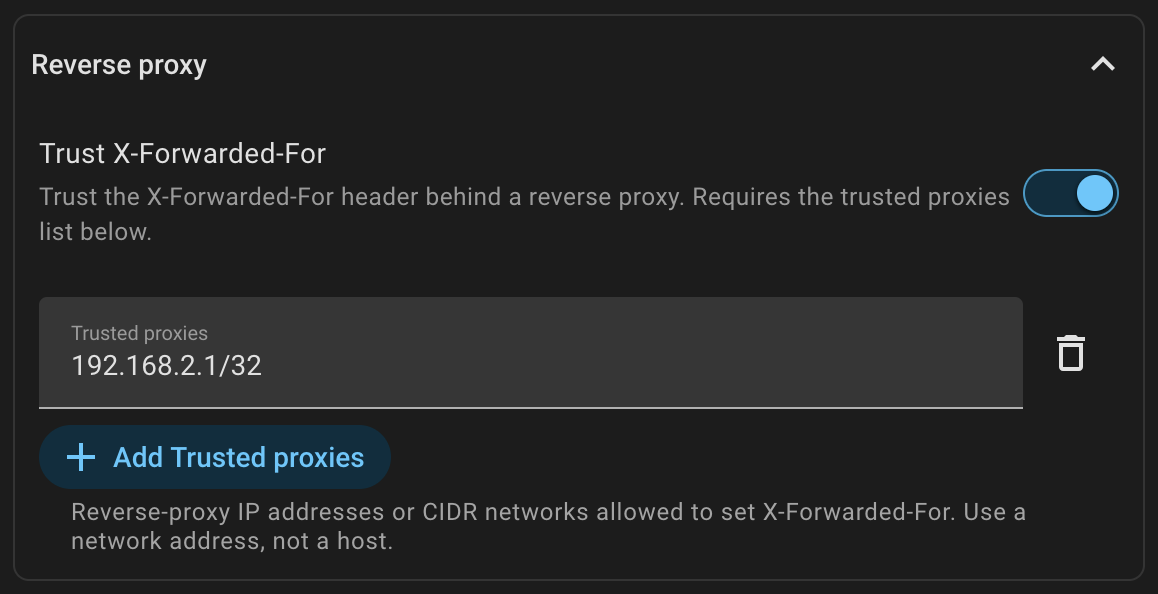
  • On your Home Assistant instance, add the following to the configuration.yaml. This tells HA to accept proxied connections from the gateway. If you don’t do this, or specify the wrong trusted_proxy, you will receive a 400: Bad Request error when trying to access the site via the proxy:
http:
  use_x_forwarded_for: true
  trusted_proxies:
    - 192.168.2.1/32
  • In OPNsense, install NGINX.
  • In ConfigurationUpstreamUpstream Server define your HA instance as a server:
    • Description: HA Server
    • Server: 192.168.2.23 (your Home Assistant device)
    • Port: 8123 (the port you have Home Assistant running on, 8123 is the default)
    • Server Priority: 1
  • In ConfigurationUpstreamUpstream define a grouping of upstream servers, in this case the one you defined in the previous step:
    • Description: Home Assistant
    • Server Entries: HA Server
  • In ConfigurationHTTP(S)Location define what will get redirected to the Upstream:
    • Toggle Advanced Mode
    • Description: Home Assistant
    • URL Pattern: /
    • Upstream Servers: Home Assistant
    • Advanced Proxy OptionsWebSocket Support: ✓
  • In ConfigurationHTTP(S)HTTP Server define the actual server to listen for HTTP connections:
    • HTTP Listen Address: Clear this out unless you want to proxy HTTP for some reason.
    • HTTPS Listen Address: 8123 and [::]:8123. Leave out the latter if you don’t wish to respond on IPv6.
    • Default Server: ✓
    • Server Name: homeass.site.nuxx.net
    • Locations: Home Assistant
    • TLS Certificate: Pick the certificate that you created early on with the ACME plugin.
    • HTTPS Only: ✓ (Unless for some reason you wish to support cleartext HTTP.)
  • Then under General Settings check Enable nginx and click Apply.
  • Finally, if needed, be sure to create the firewall rule(s) needed to allow traffic to connect to the TCP port you designated in the HTTP Server portion of the NGINX configuration.

[1] Reasons for doing the proxying on the firewall include:

  • The Let’s Encrypt Add-on won’t restart NGINX automatically on cert renewal as OPNsense can. This means I’d have to either write something to do it, or manually restart the add-on to avoid periodic certificate errors.
  • If NGINX is running on the same device as Home Assistant, then it needs to be on a different port. I prefer using the default port.
  • I’d prefer to run just one copy of NGINX on my network for reverse proxying.
  • While experimenting with NGINX and LE on HA I kept running into weird problems where something would start logging errors or just not work until I restarted the box. With everything running as containers, troubleshooting intermittent issues like these is painful enough that I preferred to avoid it.
Comments closed

DIY-ish Under Cabinet Lighting

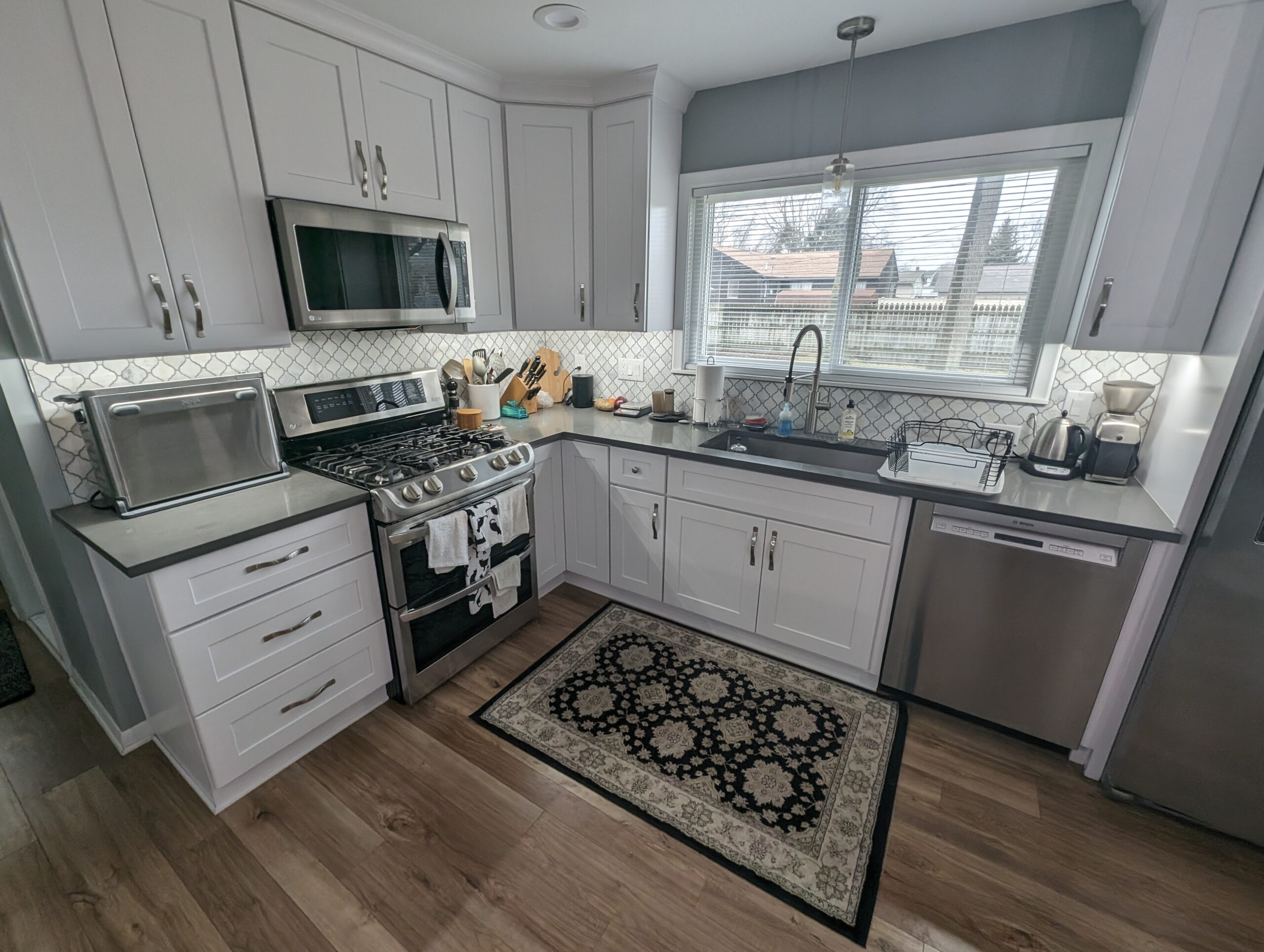
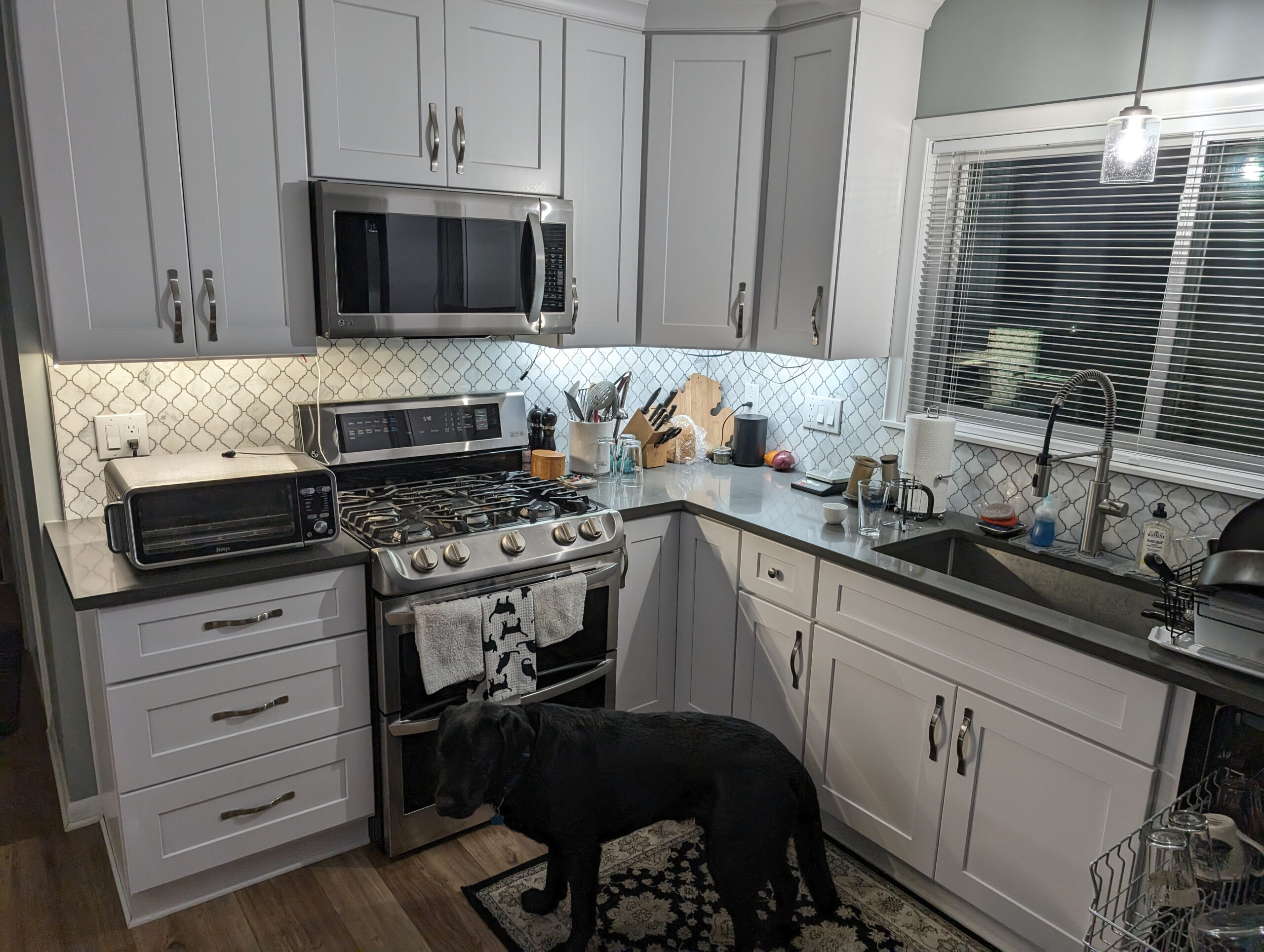
After the kitchen was redone in our new house, the under-cabinet space (where lights would go) was intentionally left unpopulated; something for me to finish later. The electrician had fitted an outlet per cabinet grouping, and a switch on the wall that toggles those outlets, but I’d asked him to skip the lights because I really wasn’t sure what style or color we wanted, nor how I wanted to wire things. Being low voltage with the outlets and switch already fitted, it would be fairly straightforward later on.

This winter, looking for a project, I decided to finally get this done. After talking with my friend Dan and some investigating, I finally got a solution together.

What I ended up doing was sourcing a handful of parts, flexible PCB LED strips, aluminum enclosures, wire, and wall wart power supplies on Amazon, assembling it, and sticking it to the underside of the cabinets. This has worked out well, so I wanted to share what I did.

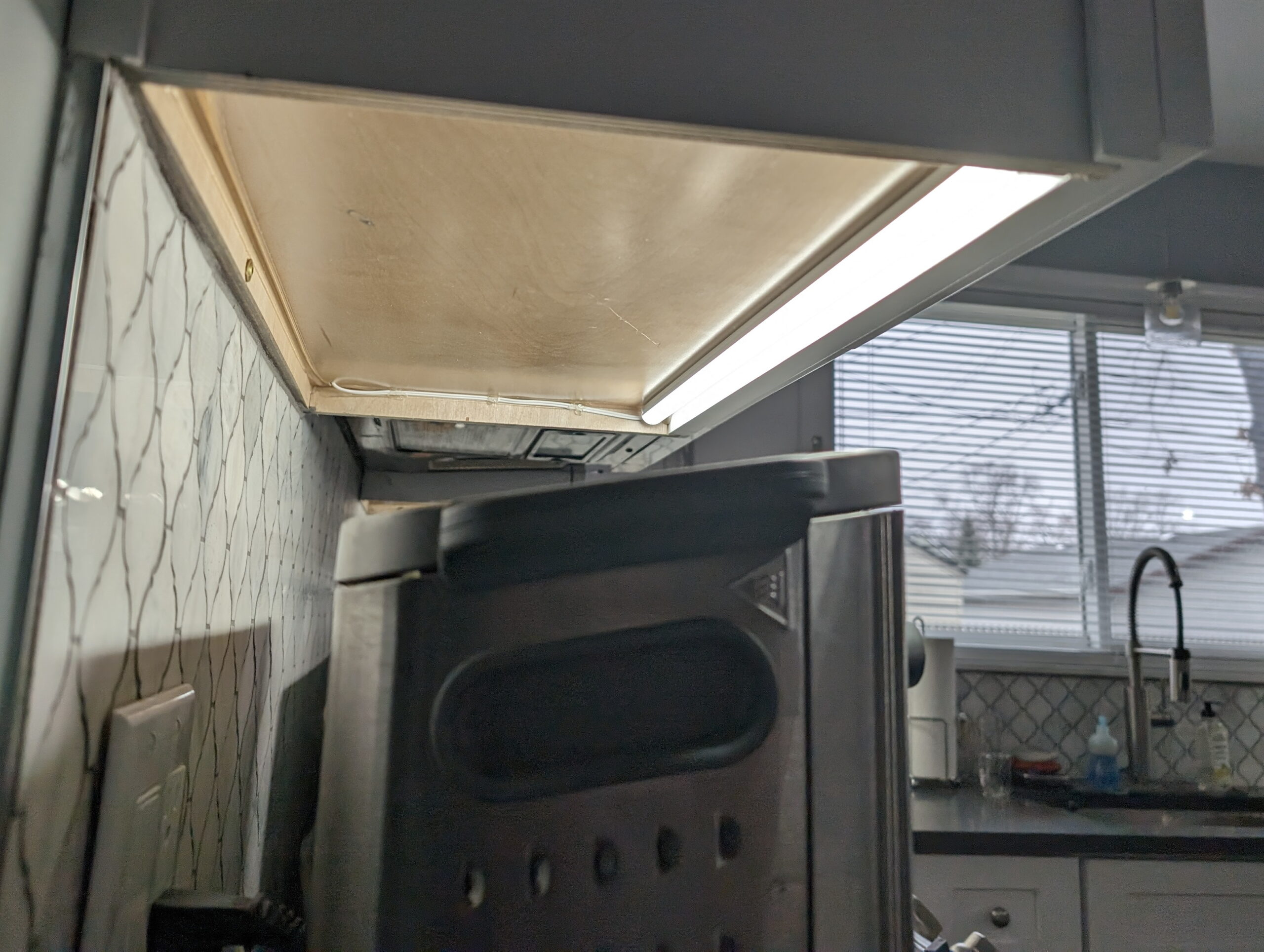
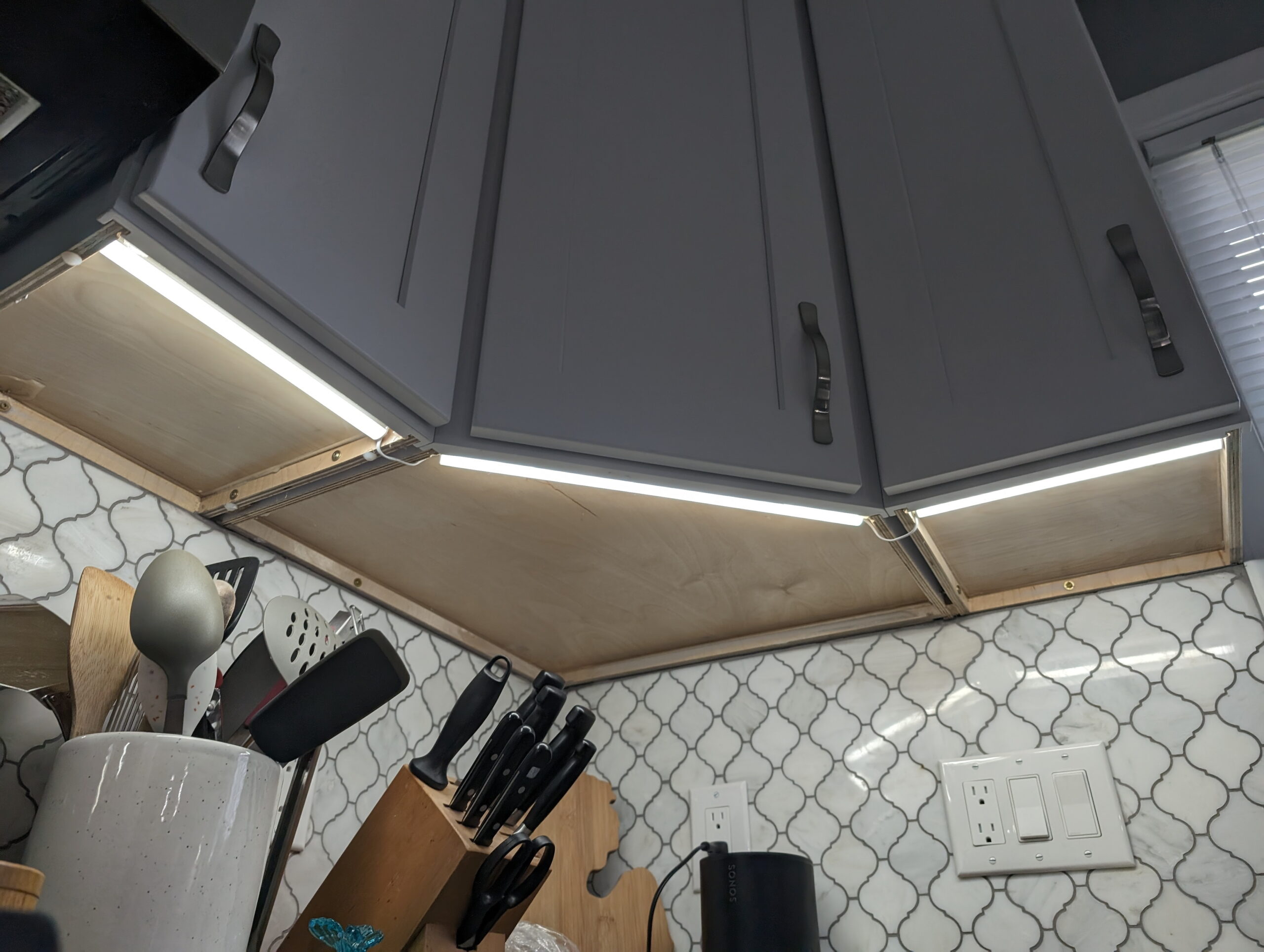
Our kitchen has three overhead cabinet groupings, the left-most has 22″ of face, the corner has 37″ of face (2x 10″ side cabinets and 1x 17″ center cabinet), and the right-most is a single 10″ cabinet. I had originally thought of ringing the underside of each cabinet with LED strip lights, but after some consideration I decided to do a single light assembly along the front edge of each cabinet, pointing down, with a wide-angle diffuser.

In the kitchen we have daylight (5000K) colored lights, but as the under-cabinet lighting is likely to be used as more of a night or secondary light, I figured on ~4000K lights. After buying strips of both 4000K and 6000K of to test, we ended up with some strips listed as Cool White 6000K. This matches pretty well whenever the overhead lights are on and it’s bright to cloudy day outside, and likely because of the grey-ish countertops it still looks fine when they are the only lights on.

It would have been possible to use a different type of strip that has multiple color temperature white LEDs and selectable color temperature, but doing this requires a controller external to adjust the light strips, which would have added around $60 just for the controllers, plus another $10 or so in LEDs, a remote control, more space taken up in the cabinets. This setup, with fixed color strips, is just AC-DC adapters plugged into the existing mains outlets, and the LED strips connected to the adapters. If we find that this isn’t good I may eventually go to controllers, but for now this is working nicely.

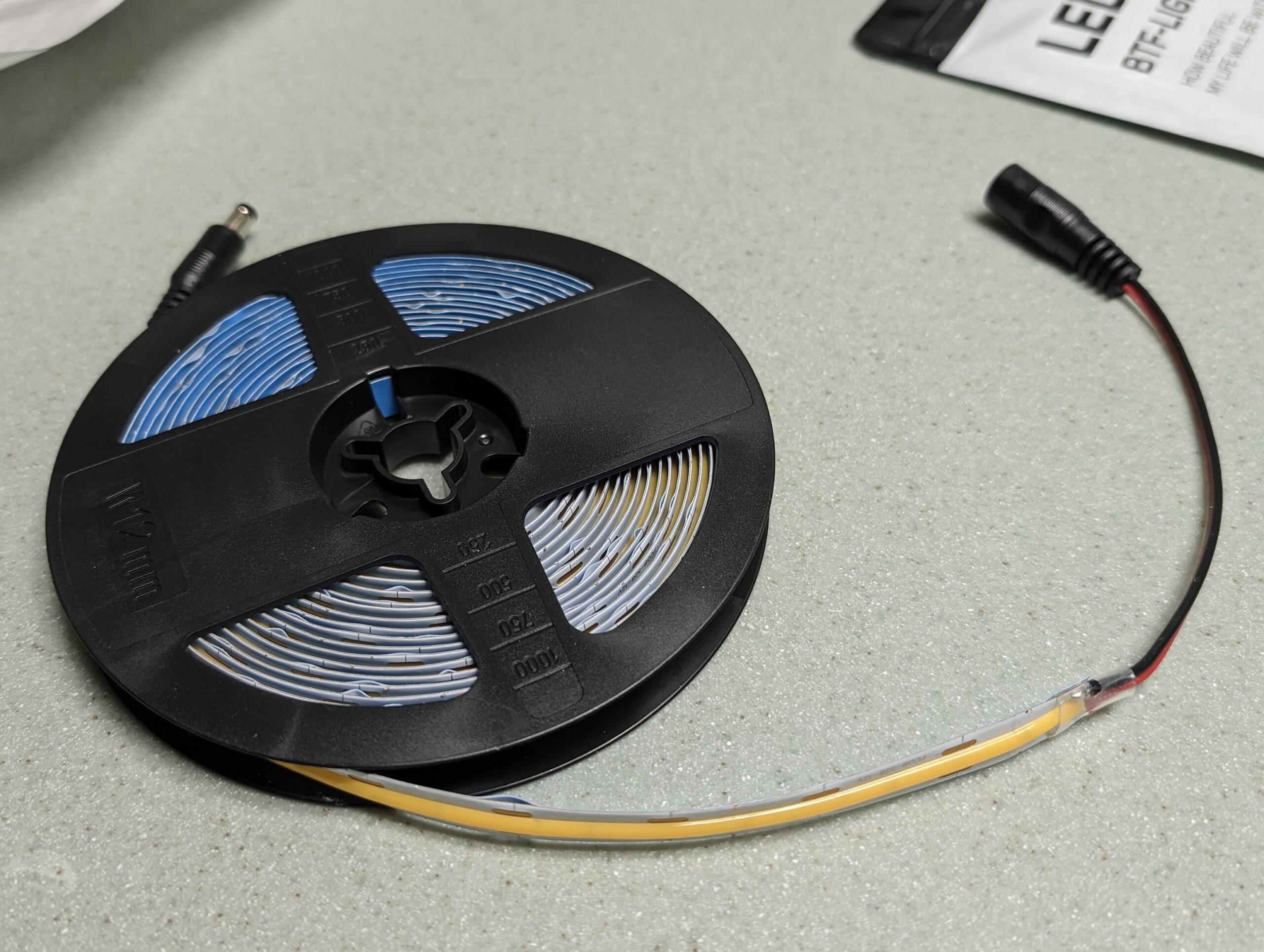
For the LED strips I chose FCOB LED strips from BTF-LIGHTING, 528 LEDs per meter, in 12V. With the heavy silicone coating over the LED chips it makes for a fairly even light. I chose the 12V variant of the lights because they have cut-points 22.83mm, which made it easy to make maximize the amount of LED strip under each cabinet. If the runs were longer it would have been wise to choose 24V to decrease the amperage, but at 14 watts per meter (W/m), the longest light segment will only take ~1.1 amps (A) so this should be fine. (Amazon Link)

For hookup wire I bought a simple coil of white 20 gauge copper clad aluminum (CCA) wire, again from Amazon. I already had some hookup wire, but I wanted white to blend in nicely with the cabinets. (Amazon Link)

For power supplies I picked up a basic five-pack of 12VDC / 2A wall warts. While I only needed three, the cost for five was $7 more than buying three, and since I’ll have LED strip left over and will likely build some more arrays for elsewhere in the house, I wanted spares. They also happened to come with (very cheap) barrel to screw terminal adapters that worked well enough. (Amazon Link)

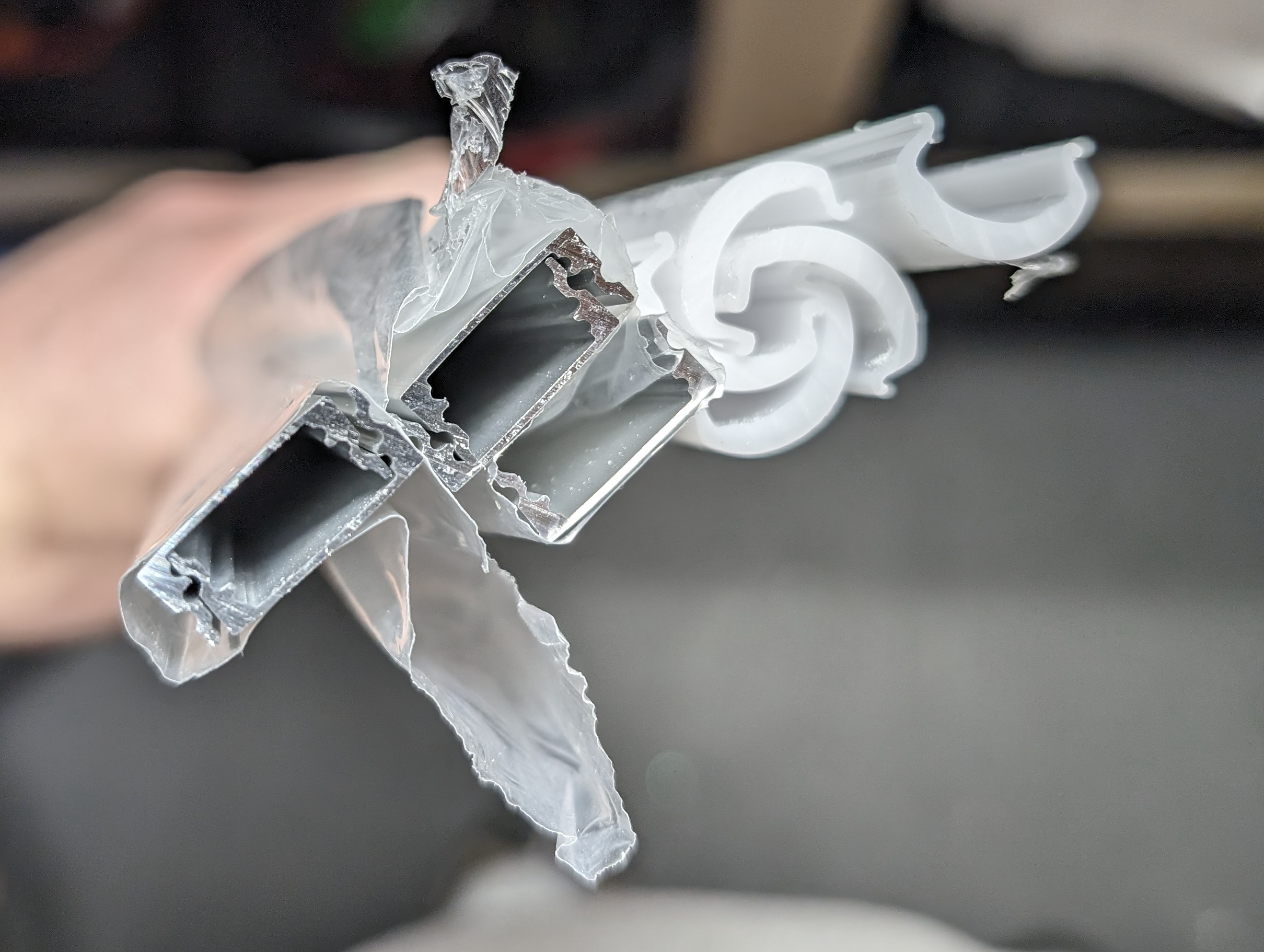
Initially I was going to mount the LED strips directly to the cabinets, but Dan convinced me that even while out of sight it would look much better in an enclosure, and he was right. The project feels properly finished this way and it looks tidy. The enclosures also add additional diffusion, making the light look smoother and more even and overall better. For this I chose some 1m long pieces of aluminum channel with a 60° milky white domed cover, then cut it to width for each cabinet section. (Amazon Link)

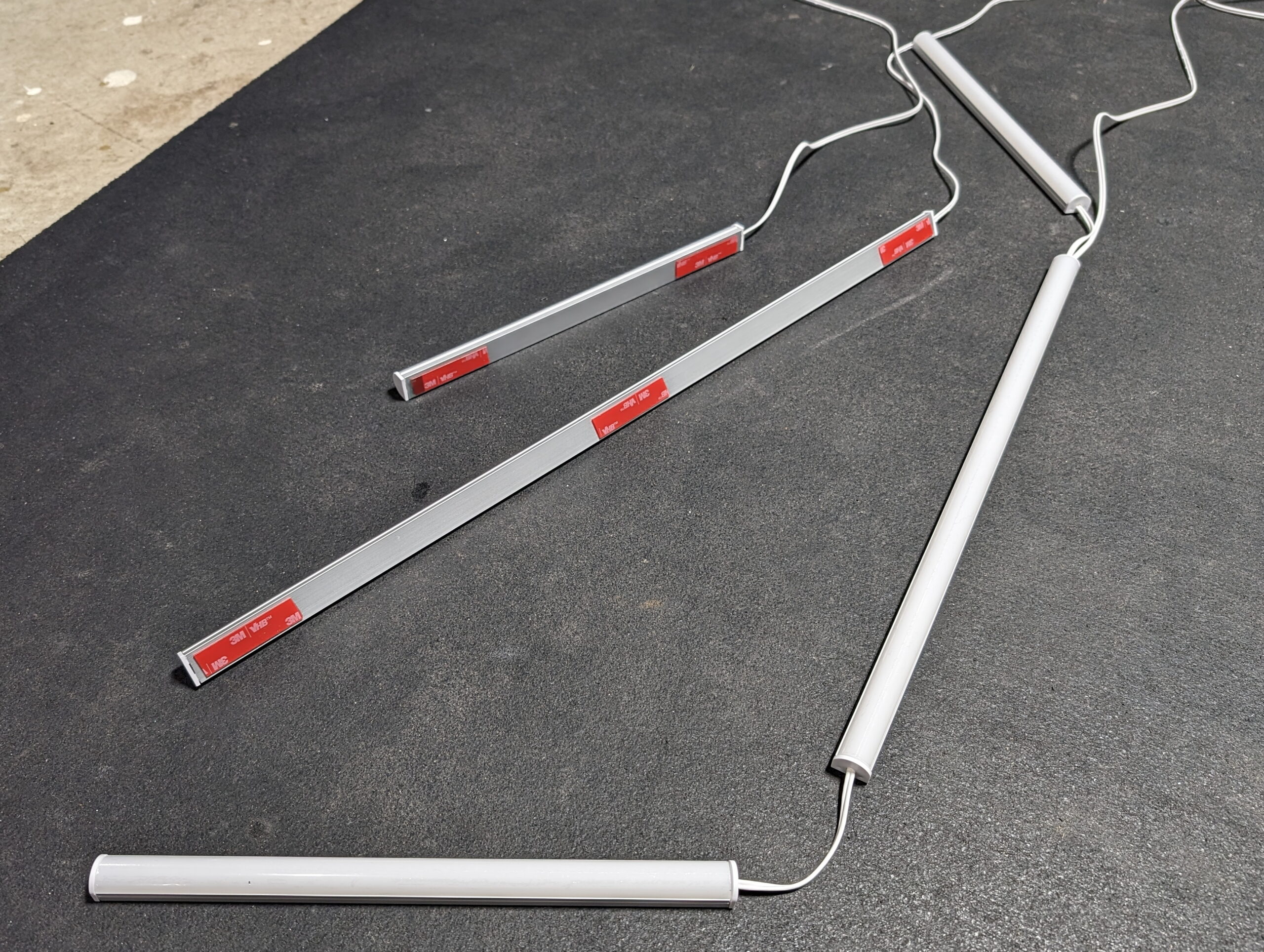
The light enclosures include screws and mounting clips, but I instead opted for tape, and picked up a 5 yard roll of 3M VHB 4910, which is specifically described as being good for Polycarbonate, Aluminum, and Acrylic/Polyurethane Paint; perfect for sticking these housings to the underside of cabinets. (Amazon Link)

Assembly was done by first determining the width of the housings, so I went with even-inch sizes that are just slightly narrower than the underside of the cabinet. This resulted in five pieces: 1x 22″, 1x 16-1/2″, and 3x 10⁻¹/4″. With the cover snapped into the aluminum channel it all cut clean and easily using a circular miter saw with a fine tooth carbide blade.

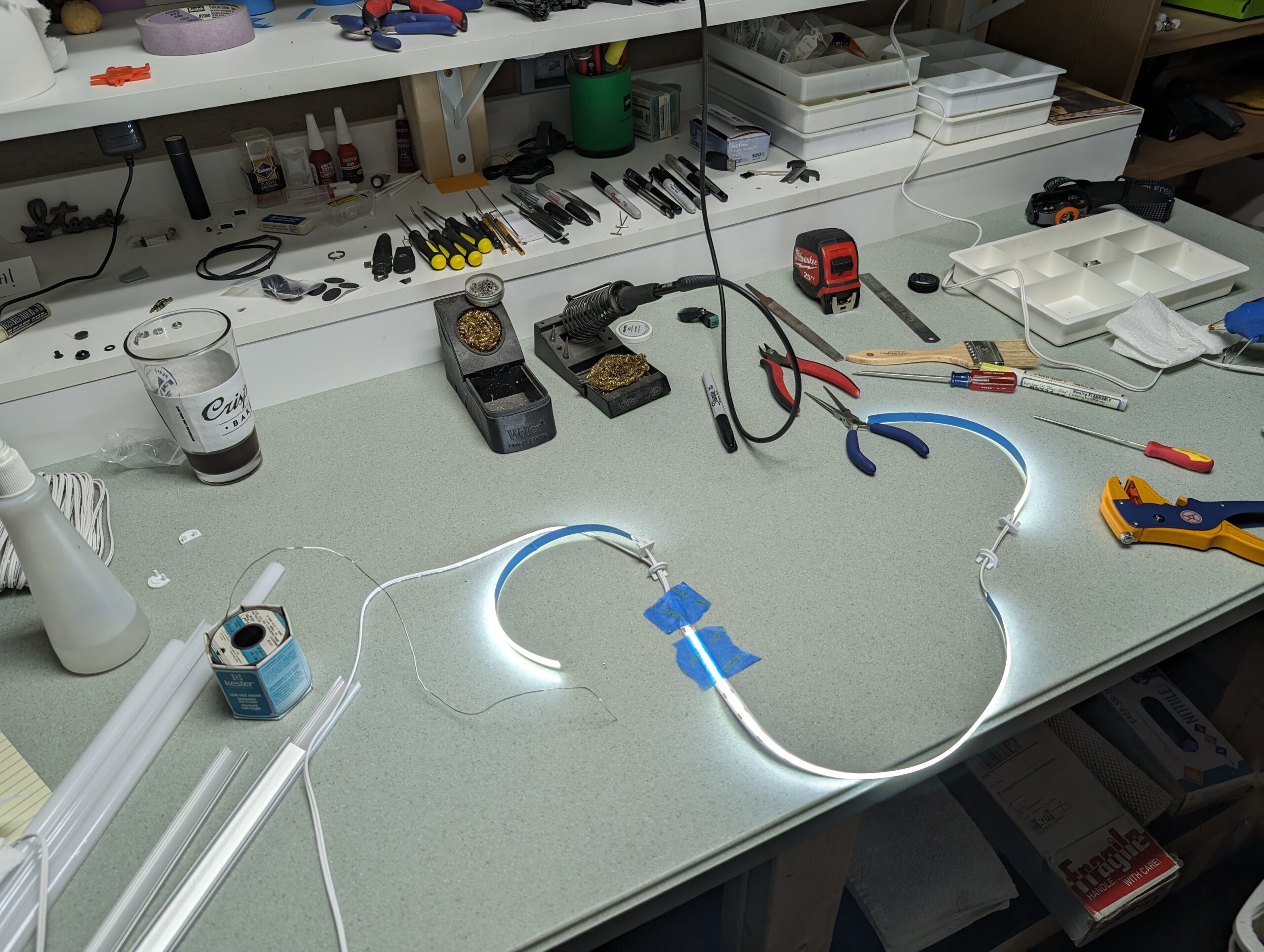
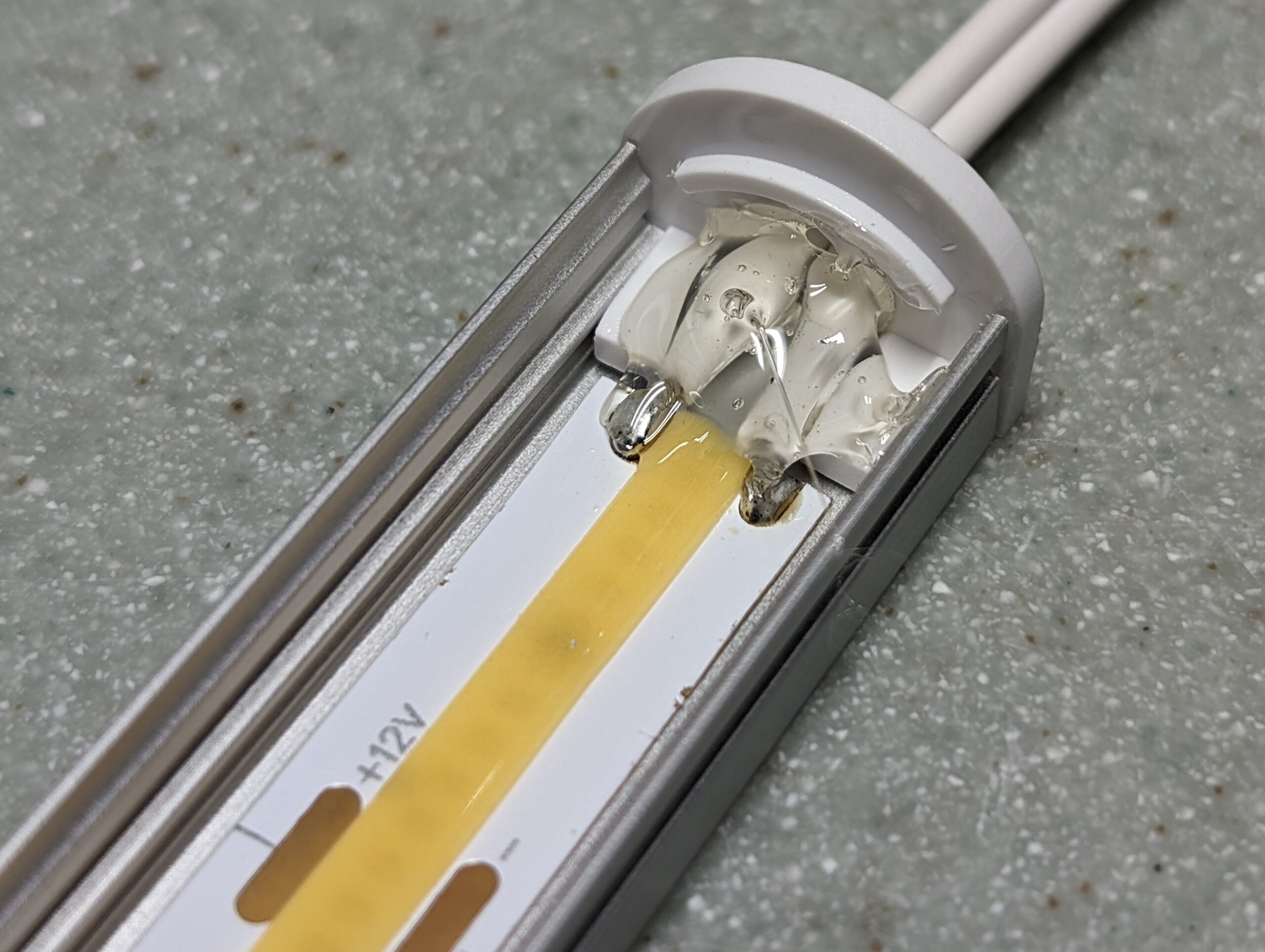
I then cut LED strip to the next step shorter than the housing, soldered the supply wire, stuck the strip into the housing via it’s self-adhesive backing, fitted the endcaps, added hot-melt glue for strain relief at the solder area, and snapped the face on. For the corner cabinet lights I wired it in a T arrangement, with the two sides being fed from the center, and then a wire out of the center to head up to the cabinet. This arrangement was because the corner cabinet holds the outlet near the back left side and it minimizes wire distance. It may have also helped with voltage drop on a long-ish strip of LEDs, but I’m not sure the ~30″ total would be enough to actually cause a problem.

A small hole (3/16″) was drilled in the underside of the cabinet to run the wire up to the supply, cabinet undersides cleaned and strips stuck in place with VHB tape, wire was tacked in place with hot melt glue, and screw terminal to barrel adjuster adapters (which came with the power supplies) fitted. A bit of cable tying to tidy the cables in the cabinets and it’s all done.

Total cost for this project was $122.83, and that includes the unused 4000K strip that I bought as a test. There is enough extra left over to do at least another 10′ of enclosed light somewhere else in the house, so I might build some light strips for under my workbench shelves or perhaps where I have music gear in my closet.

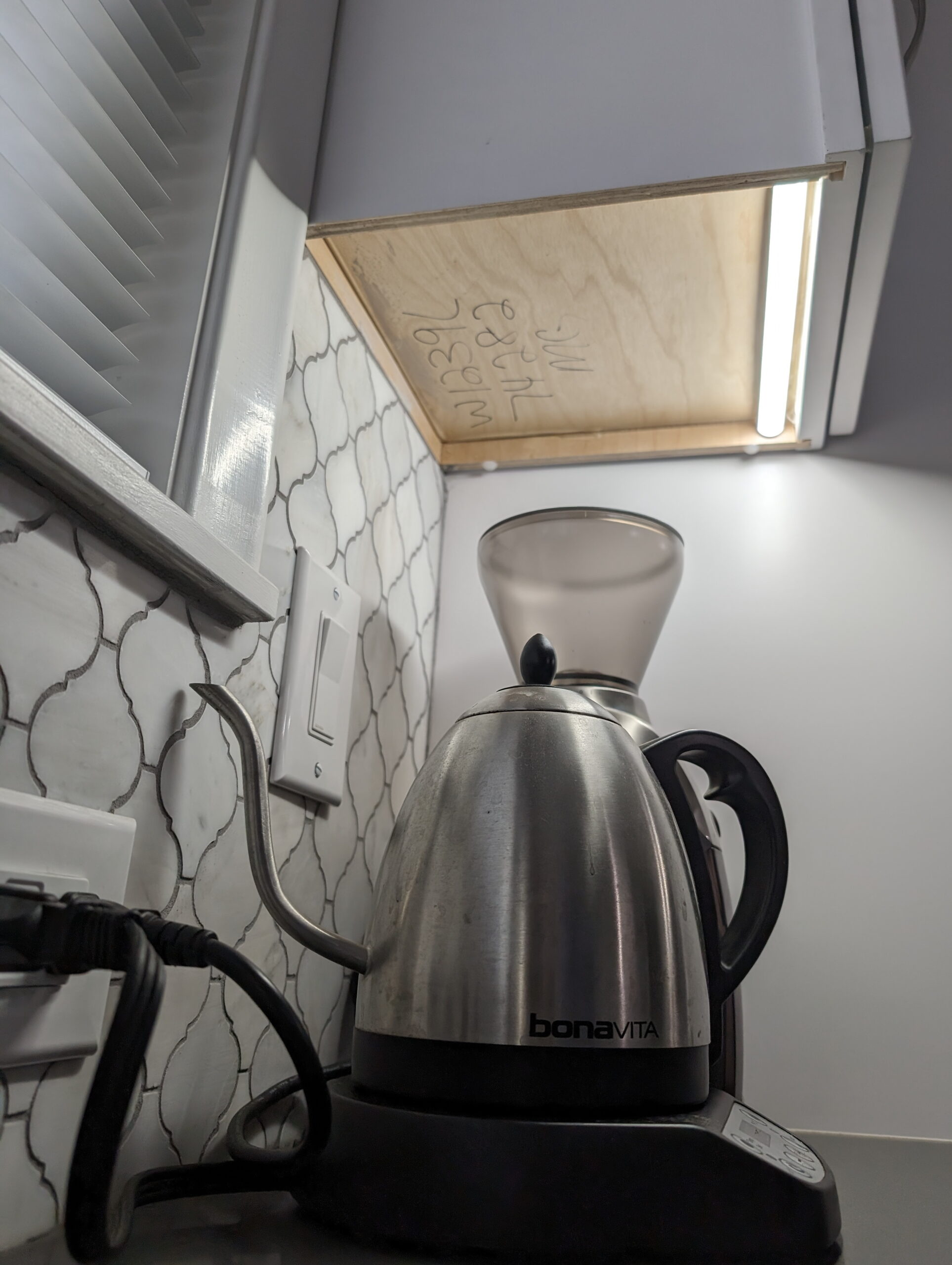
Kristen and I are both really happy with how it came out. More than just filling in the room and serving as a night light it actually offers usable additional light when working on the counters, especially when cooking at the stove.

Comments closed

HOWTO: Apple TV Volume Control of Bose Solo Soundbar Series II

After moving into our new house I we switched our trainer TV’s audio setup to a Bose Solo Soundbar Series II from Costco for $159.99. It’s a cheaper, basic soundbar that connects via TOSLINK, but sounds plenty good for TV/movie watching while pedaling away during the winter.

One of the really nifty features of the Apple TV is its ability to learn the infrared (IR) remote control signals of a another device so its remote can control the volume of receivers and such. This works out wonderfully, as with HDMI ARC, from the one Apple remote we can wake up the Apple TV, wake up the TV (and have it switch to the correct input), and control the volume of the soundbar.

Unfortunately, the learning process just didn’t work with the IR remote that comes with the soundbar. For whatever reason the Apple TV wouldn’t detect the IR signal being sent and the learning would fail.

Our previous setup — an old Yamaha home theater receiver and some Energy surround sound speakers — had no problems with the Apple TV. Once set up it was super convenient, so I wanted this in the new house.

I was able to solve this by buying a cheap universal remote, setting it up to control the soundbar, and then using it to the Apple TV. A bit of hoop jumping, and it cost an extra $10, but to me that’s worth the convenience.

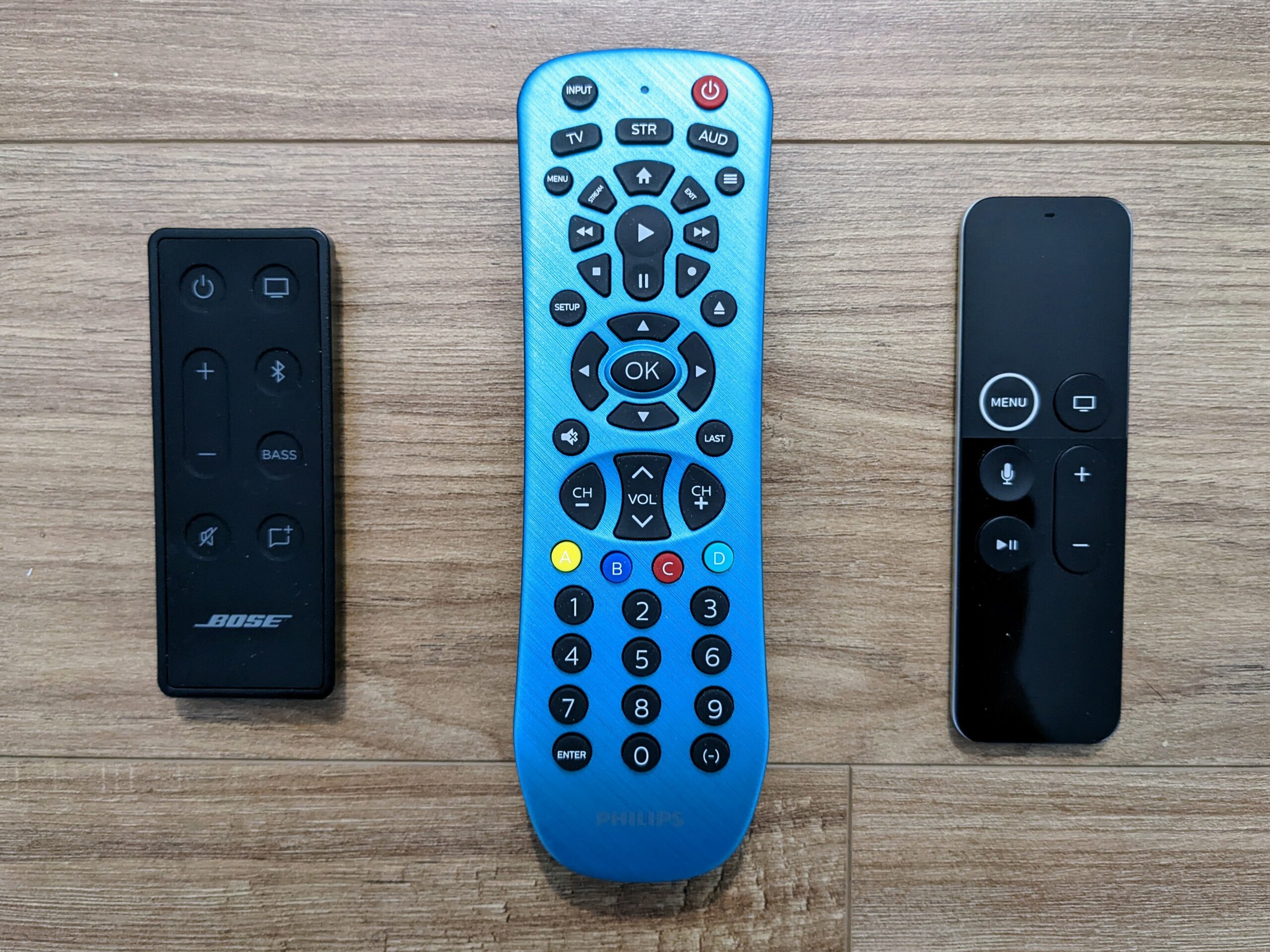
Specifically, I bought this Philips SRP3249B/27 via Amazon, programmed the AUD button with code 2706 (Sound Bar, Bose), then used that to program the Apple TV via SettingsRemotes and DevicesVolume ControlLearn New Device….

When going through the learning process on the Apple TV I noticed an interesting quirk: If I followed the on-screen instructions exactly and held the remote button until the progress bar filled up, I would have to press and release the button on the Apple TV remote repeatedly to keep changing the volume. That is, each press/release turned it up or down just one notch on the soundbar.

By repeatedly pressing the button during the learn process the Apple TV learned something slightly different and then holding the button on its remote resulted in the soundbar continually increasing/decreasing the volume as the button is held.

Either way, it’s now working all from the Apple TV remote and all is good again. It just took an intermediate “universal” remote to bridge the gap.

Comments closed

A Home Network Troubleshooting Journey

This week I moved from UniFi to a new setup that included OPNsense on the edge to handle firewall, NAT, and other such tasks on the home network. Built in to OPNsense is a basic NetFlow traffic analyzer called Insight. Looking at this and turning on Reverse lookup something strange popped out: ~22% of the traffic coming in from the internet over the last two hours was from just two hosts: dynamic-75-76-44-147.knology.net and dynamic-75-76-44-149.knology.net.

While reverse DNS worked to resolve the IPs to hostnames (75.76.44.147 to dynamic-75-76-44-147.knology.net and 75.76.44.149 to dynamic-75-76-44-149.knology.net), forward lookup of those hostnames didn’t work. This didn’t really surprise me as the whole DNS situation on the WOW/Knowlogy network is poor, but it did make me more curious. Particularly strange was the IPs being are so close together.

To be sure this is Knology (ruling out intentionally-misleading reverse DNS) I used whois to confirm the addresses are owned by them:

NetRange: 75.76.0.0 - 75.76.46.255
CIDR: 75.76.46.0/24, 75.76.40.0/22, 75.76.0.0/19, 75.76.44.0/23, 75.76.32.0/21
NetName: WIDEOPENWEST
NetHandle: NET-75-76-0-0-1
Parent: NET75 (NET-75-0-0-0-0)
NetType: Direct Allocation
OriginAS: AS12083
Organization: WideOpenWest Finance LLC (WOPW)
RegDate: 2008-02-13
Updated: 2018-08-27
Ref: https://rdap.arin.net/registry/ip/75.76.0.0

My home ISP is Wide Open West (WOW), and Knology is an ISP that they bought in 2012. While I use my ISP directly for internet access (no VPN tunnel to elsewhere), I run my own DNS to avoid their service announcement redirections, so why would I be talking to something else on my ISP’s network?

Could this be someone doing a bunch of scanning of my house? Or just something really misconfigured doing a bunch of broadcasting? Let’s dig in and see…

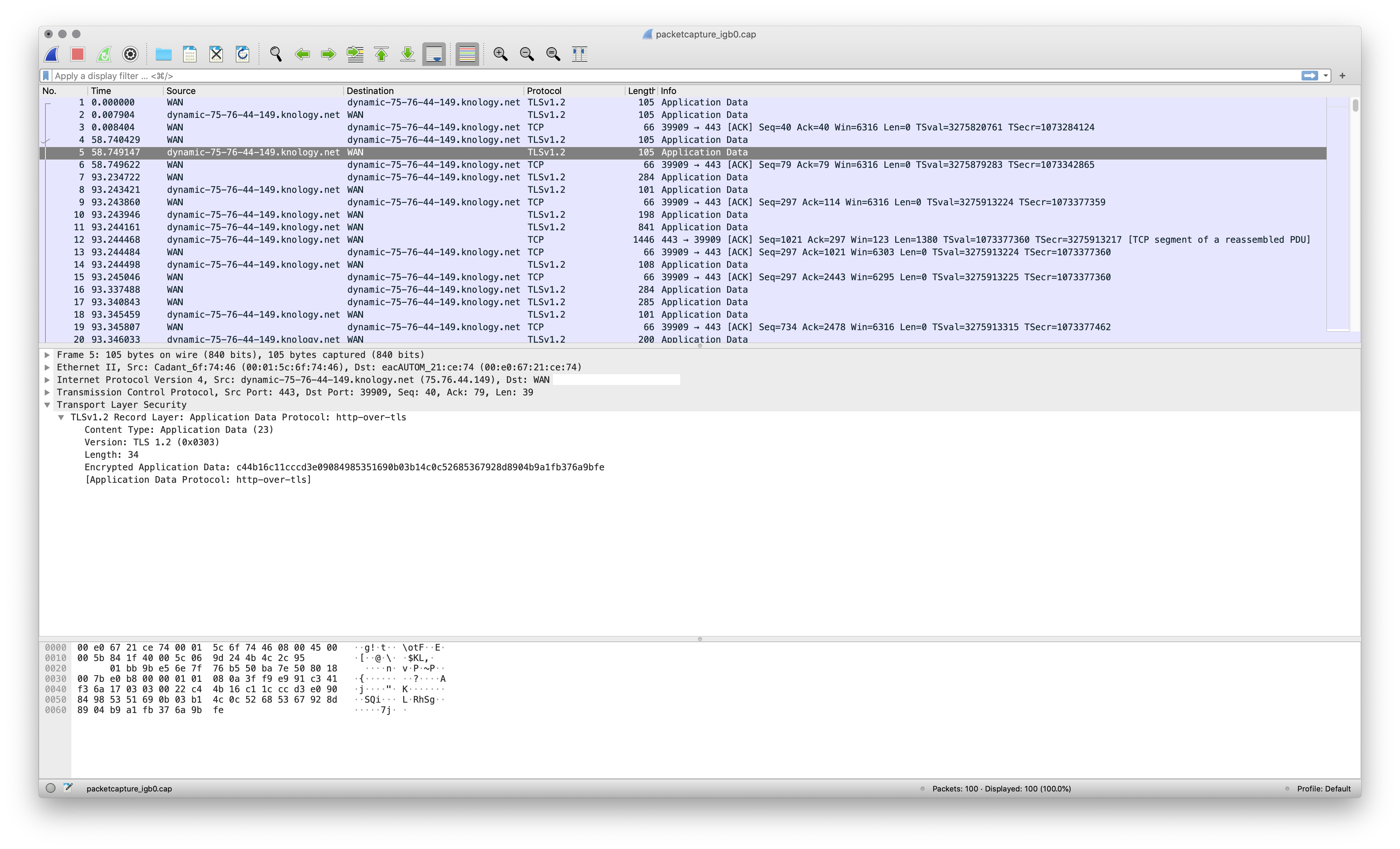
First I used the Packet capture function in OPNsense to grab a capture on the WAN interface filtered to these two IPs. Looking at it in Wireshark showed it was all HTTPS. Hmm, that’s weird…

A couple coworkers and I have Plex libraries shared with each other, maybe that’s it? The port isn’t right (Plex usually uses 32400) but maybe one of them are running on it in 443 (HTTPS)… But why the two IPs so close to each other? Maybe one of them are getting multiple IPs from their cable modem, have dual WAN links configured on their firewall, and it’s bouncing between them… (This capture only showed the middle of a session, so there was no certificate exchange present to get any service information from.)

Next I did another packet capture on the LAN interface to see if it’s a computer on the network or OPNsense as the local endpoint. This showed it’s coming from my main personal computer, a 27″ iMac at 192.168.0.8 / myopia.--------.nuxx.net, so let’s look there. (Plex doesn’t run on the iMac, so that’s ruled out.)

Conveniently the -k argument to tcpdump on macOS adds packet metadata, such as process name, PID, etc. A basic capture/display on myopia with tcpdump -i en0 -k NP host 75.76.44.149 or 75.76.44.147 to show all traffic going to and from those hosts identified Firefox as the source:

07:39:57.873076 pid firefox.97353 svc BE pktflags 0x2 IP myopia.--------.nuxx.net.53515 > dynamic-75-76-44-147.knology.net.https: Flags [P.], seq 19657:19696, ack 20539524, win 10220, options [nop,nop,TS val 3278271236 ecr 1535621504], length 39
07:39:57.882070 IP dynamic-75-76-44-147.knology.net.https > myopia.--------.nuxx.net.53515: Flags [P.], seq 20539524:20539563, ack 19696, win 123, options [nop,nop,TS val 1535679857 ecr 3278271236], length 39

Well, okay… Odd that my browser would be talking so much HTTPS to my ISP directly. I double-checked that DNS-over-HTTPS was disabled, so it’s not that…

Maybe I can see what these servers are? Pointing curl at one of them to show the headers, the server header indicated proxygen-bolt which is a Facebook framework:

c0nsumer@myopia Desktop % curl --insecure -I https://75.76.44.147
HTTP/2 400
content-type: text/plain
content-length: 0
server: proxygen-bolt
date: Sat, 16 Jan 2021 13:22:57 GMT
c0nsumer@myopia Desktop %

Now we’re getting somewhere…

Finally I pointed openssl at the IP to see what certificate it’s presenting and it’s a wildcard cert for a portion of Facebook’s CDN:

c0nsumer@myopia Desktop % openssl s_client -showcerts -connect 75.76.44.149:443 </dev/null
CONNECTED(00000003)
depth=2 C = US, O = DigiCert Inc, OU = www.digicert.com, CN = DigiCert High Assurance EV Root CA
verify return:1
depth=1 C = US, O = DigiCert Inc, OU = www.digicert.com, CN = DigiCert SHA2 High Assurance Server CA
verify return:1
depth=0 C = US, ST = California, L = Menlo Park, O = "Facebook, Inc.", CN = *.fdet3-1.fna.fbcdn.net
verify return:1
[SNIP]

As a final test I restarted tcpdump on the iMac then closed the Facebook tab I had open in Firefox and the traffic stopped.

So there’s our answer. All this traffic is to Facebook CDN instances on the Wide Open West / Knology network. It sure seems like a lot for a tab just sitting open in the background, but hey… welcome to the modern internet.


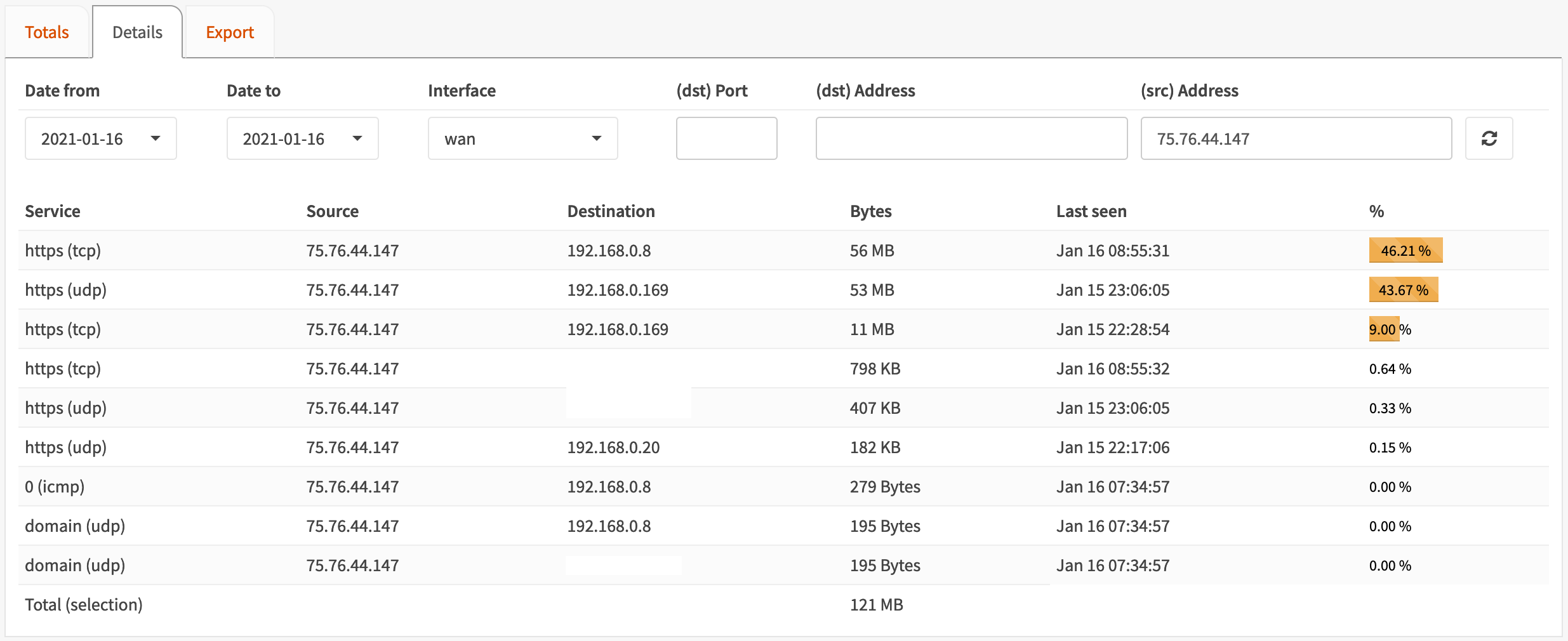
I could have received more information from OPNsense’s Insight by clicking on the pie slice shown above to look at that host in the Details view, but it seems to have an odd quirk. When the Reverse lookup box is checked, clicking the pie slice to jump to the Details view automatically puts the hostname in the (src) Address field, which returns no results (it needs an IP address). I thought this was the tool failing, so I looked to captures for most of the info.

Later on I realized that filtering on the IP showed a bunch more useful information, including two other endpoints within the network talking to these servers (mobile phones), and that HTTPS was also running over UDP, indicating QUIC.

(Bug 4609 was submitted for this issue and AdSchellevis fixed it within a couple hours via commit c797bfd.)

Comments closed

Pi-hole via Docker on Synology DSM with Bonded Network Interface

With consolidating and upgrading my home network I’m moving Pi-hole from a stand-alone Raspberry Pi to running under Docker on my Synology DS1019+ running DiskStation Manager (DSM) v6.2.3.

This was a little bit confusing at first as the web management UI would work, but DNS queries weren’t getting answered. This ended up being caused by the bonded network interface, which is ovs_bond0 instead of the normal default of eth0.

Using the official Pi-hole Docker image, set to run with Host networking (Use the same network as Docker host in the Synology UI), setting or changing the following variables will set up Pi-hole work from first boot, configured to:

  • Listen on ovs_bond0 (instead of the default eth0).
  • Answer DNS queries on the same IP as DSM (192.168.0.2).
  • Run the with the web-based management interface on port 8081 with password piholepassword.
  • Send internal name resolutions to the internal DNS/DHCP server at 192.168.0.1 for clients *.internal.example.com within 192.168.0.0/24.
  • Set the displayed temperature to Farenheit and time zone to America/Detroit.
  • Listen for HTTP requests on http://diskstation.internal.example.com:8081 along side the default pi.hole hostname.

DNS=127.0.0.1
INTERFACE=ovs_bond0
REV_SERVER=True
REV_SERVER_CIDR=192.168.0.0/24
REV_SERVER_DOMAIN=internal.example.com
REV_SERVER_TARGET=192.168.0.1
ServerIP: 192.168.0.2
TEMPERATUREUNIT=f
TZ: America/Detroit
VIRTUAL_HOST: diskstation.internal.example.com
WEB_PORT: 8081
WEBPASSWORD: piholepassword

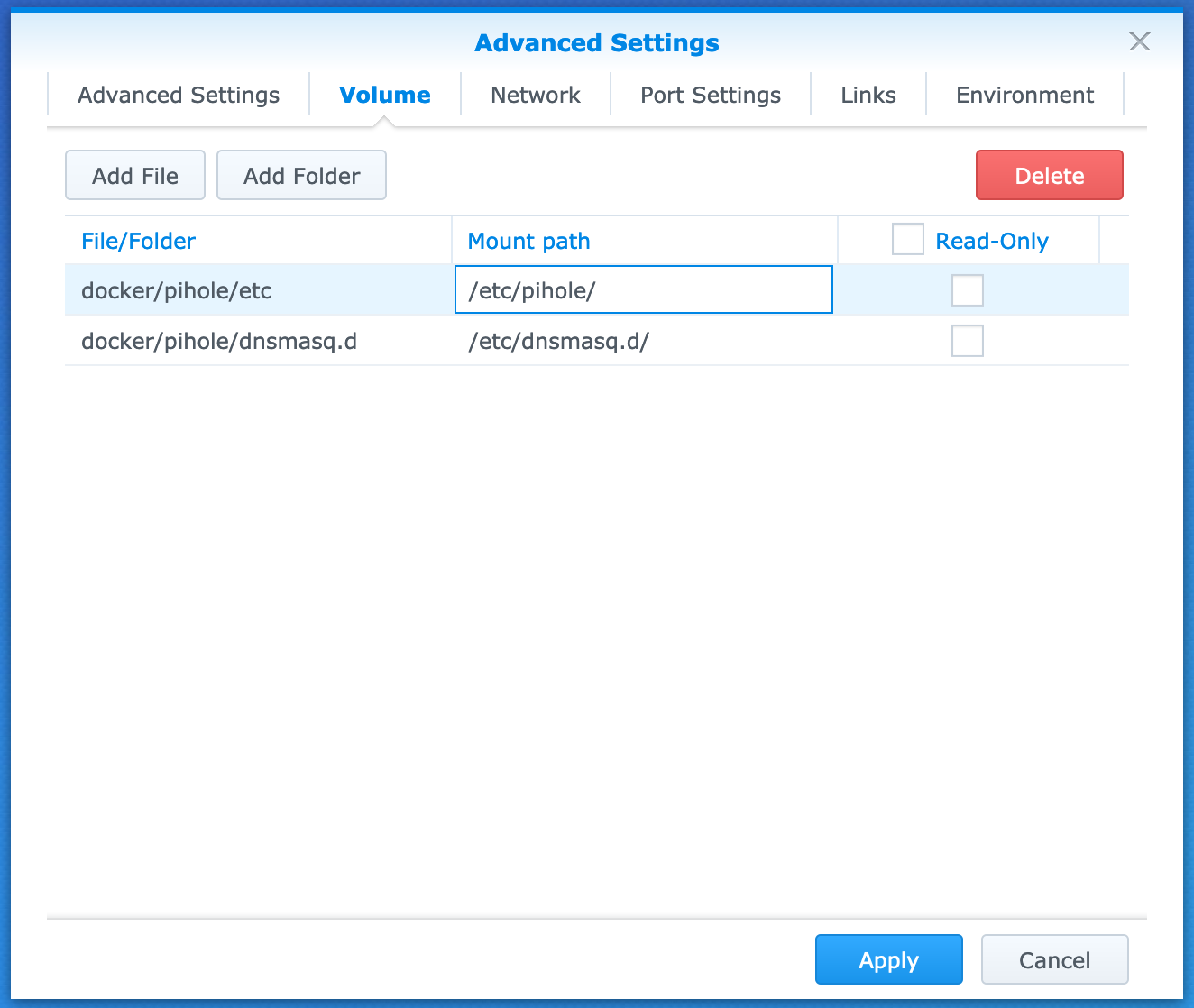
Additionally, setting up volumes for /etc/dnsmasq.d/ and /etc/pihole/ will ensure changes to the UI persist across restarts and container upgrades. I do this as shown here:

Note: If you stop the Pi-hole container, clear out the contents of these directories, and then restart the container, Pi-hole will set itself up again from the environment variables. This allows tweaking the variables without recreating the container each time.

UPDATE: With the update to Synology DSM 7.0 the interface is now called bond0.

Comments closed

Pi-hole (and PiVPN) with Ubiquiti UniFi

Pi-hole

My home network is based around Ubiquiti’s UniFi, with a Security Gateway (USG) handling the NAT/firewall/routing duties. For ad blocking and to have better control over DNS I use Pi-hole running on a Raspberry Pi.

With the following settings you can have the two working well together with UniFi doing DHCP and Pi-hole doing DNS. Internal forward and reverse resolution will work, which means hostnames will appear properly for internal devices on both consoles while requests are still appropriately Pi-hole’d.

Here’s how:

  • Set up the Pi-hole and put it on the network at a static IP.
  • In Pi-hole, under SettingsDNS turn on:
    • Never forward non-FQDNs
    • Never forward reverse lookups for private IP ranges
    • Conditional forwarding with IP address of your DHCP server (router) as the USG
    • Local domain name (optional) as your internal DNS suffix
  • In the USG, set DHCP to hand out the Pi-hole’s IP for DHCP Name Server.
  • In USG, under ServicesDHCPDHCP Server, set Register client hostname from DHCP requests in USG DNS forwarder to On.
  • Leave the WAN interface’s DNS set to something public, such as what the ISP provides or Google’s 8.8.8.8/8.8.4.4 or whatever. This ensures that if the Pi-hole goes down then the USG can still resolve DNS.

After setting this up clients will use Pi-hole for DNS, as configured via DHCP. Requests for hostnames and addresses on the local network (shortnames or local suffix) will get forwarded to the USG, ensuring ensures that internal requests work properly.

PiVPN

Taking this a step further, I also have PiVPN running on the same Pi, to provide an endpoint for connecting into my home network via Wireguard. Pi-hole and PiVPN integrate very nicely and are designed to work together, making the setup very smooth.

By default, PiVPN sets the Pi-hole as the DNS via a DNS option in the [Interface] section of the config. To ensure appropriately geolocated search results when connected to VPN, use a DNS which supports Extended Client Subnet (ECS) (under SettingsDNS) on the Pi-hole.

(For reference, I’m running Pi-hole on a Raspberry Pi 4 Model B with 2GB of RAM and it has plenty of overhead for both Pi-hole for ~20 devices and sustaining 50 MByte/sec via Wireguard. The Pi-hole section of this was originally written up here on Reddit.)

Comments closed

Easy Carpet Spikes for iMovR Freedom Base

I recently purchased an iMovR Energize corner standing desk which came with the Freedom base. It works well, but had a bit of a wobble when placed on the relatively-thick carpet in my office. Because the leveling legs are relatively wide (35mm) they’d sit on top of the carpet and the desk didn’t have great support.

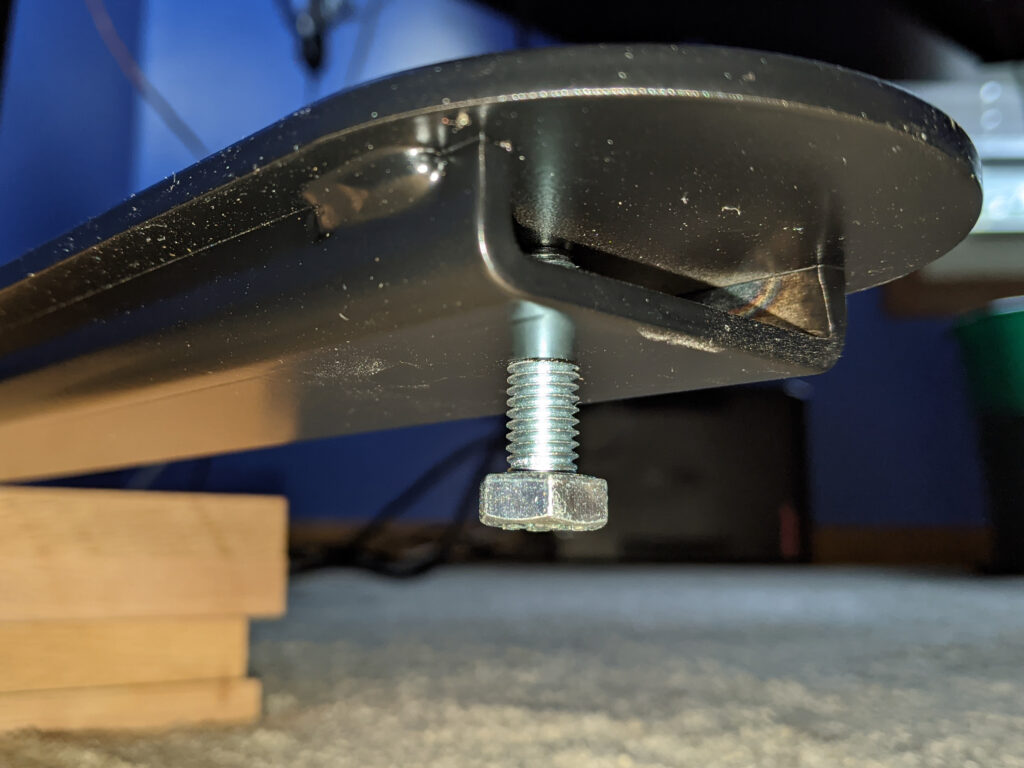
To solve this I picked up four M8-1.25 x 25mm hex head screws from Home Depot and fitted them in place of the leveling feet. This resulted in ~20mm tall, narrow feet sticking down off the legs, pressing firmly through the carpet to the wood floor below, and no more wobble.

This is the same principle as carpet spikes, used to for speakers and other tall/narrow cabinets, to make them more stable on soft carpet by pressing through the carpet to the hard floor below. (Carpet spikes, for speakers, have all sorts of other acoustic isolating purposes which sometimes border on audiophile woo, but increased physical stability is an easily demonstrated effect.)

Comments closed

2017-2018 Trainer Setup: CycleOps Hammer

For winter 2017-2018 I’ve put together a revamped, and much improved, trainer setup in my basement. Since the last setup with a Kurt Kinetic Road Machine things have been changed pretty significantly. I had previously set things up in front of a CRT HDTV which I’d previously used as a gaming / home theater setup but over the years I didn’t really use it for anything other than movies while on the trainer and basement music; just kind of a waste. This fall I sold the CRT HDTV and stands, picked up a cheap LCD TV (with built-in Netflix and Amazon apps), and put the whole setup on a metal stand in front of the trainer.

The result is a nice setup where a movie plays at eyes-on-the-road level and TrainerRoad is just a glance below. A CycleOps Hammer smart trainer provides resistance when riding, a nice step up from using a power meter, fluid trainer, and shifting to reach power targets. Four speakers (plus two over the workbench) are connected to a home theater receiver / amp, making for great audio from movies, or music via the AppleTV (and iTunes), although I tend to have subtitles on while watching movies to keep the audio at a reasonable level. A squirrel cage fan blows from a distance to keep me cool while riding. To ensure good ANT+ connectivity I’ve located the Garmin USB adaptor to a table next to the bike where it has a short path to the trainer, power meter, and my heart rate strap.

Since I have a Stages power meter on the Vaya, I have the option of using TrainerRoad’s PowerMatch. This uses the on-bike power meter and adjusts the smart trainer so that everything matches. I understand how this will benefit those wanting the same power numbers indoors and out (since no two units match exactly), but I’m still undecided if it’s a good setup for me. I’ll be working that out over the next few rides.

So far this setup is working out very nicely. While expensive initially (almost the cost of a bike) I vastly prefer the feel of a direct drive smart trainer to the fluid trainer with power meter. Both are effective, but I’m really enjoying not having to shift and chase power targets. Both Kristen (she also bought a Hammer) and I are following TrainerRoad plans over the winter, and as it moves into more over-under workouts, especially those with very short high intensity intervals, having a smart trainer is a huge bonus. It’s very difficult to effect radical changes in power and stay on target when shifting and matching speed to a power target. A smart trainer eliminates that need.

Leave a Comment

Goodbye, 2013 El Mariachi Ti

Today it was time to say goodbye to the 2013 Salsa El Mariachi Ti. After getting a warranty replacement for the broken frame then buying and selling and shuffling parts to rebuild it into the beautiful blue 2014 bike, the call tag to have the frame sent back to Salsa still hadn’t arrived… until this week.

Prior to today I’d been storing the frame at my house, hoping against a return, hung on the wall of my office (alternate view) where I’d see it every day. Sure, this is just a bike frame, a mostly-static piece of metal that held together more complicated bits to form a bicycle, but it was also the focal point of a machine on which I experienced an entire range of emotions and adventures.

From finally completing Lumberjack 100 to getting in over my head on the NTN Singletrack in Marquette, from the first trip to Brown County State Park to getting caught in straight-line winds at Stony Creek, from hard and long rides at Poto to all-day adventures from home simply enjoying the local trails… This frame was a big part of what I’ve experienced on a bike. Every time I looked down between my legs or up after a crash, there it was.

183 rides…
5200 miles…
459 hours of glorious movement.

No longer ridable the frame had become art to me. A piece of material embodying memories; a memento. Something to look at every day and remember past good times and think about those coming in the future.

Still, I understand why Salsa doesn’t want broken frames out in the wild, so tomorrow morning I’ll be dropping it off at Rochester Bike Shop where into a box and off to the scrap heap it’ll go. I’ll still have all the great memories, it’ll just be time to find new art for that wall…

…and keep riding.

Leave a Comment

Aluminum Polishing Disappointment

A while back I stupidly put my Bialetti Moka in the dishwasher. Due to the alkaline detergent it discolored and pitted, no longer looking bright and shiny. In an effort to restore its look I researched restoring aluminum cookware that’d been washed in a similar manner and found that polishing with potassium bitartate (cream of tartar) should work well.

In the image above the left panel was the post-dishwasher state, and the right is after a few minutes of polishing with a mixture of equal parts water and potassium bitartate. While a bit of yellowing was removed the aluminum was not returned to its previous shiny state. The appearance change was actually minimal enough that I didn’t bother polishing the rest of the Moka.

I imagine I could remove more of the discoloration and pitting by using some proper metal polish and maybe a buffing wheel, but I’m not going to bother. While the Moka still works fine I was hoping for an easy return to the original shiny appearance. It looks like the recommendation of using cream of tartar didn’t do this.

Leave a Comment