Illustrator Question
Could any of you who are good with Adobe Illustrator help me out with something?
First, I download the Illustrator template (Mac or Windows) from the bottom of Maverick Label’s page about Control Panels. Then I open it in Illustrator and use Page Setup to change the artboard to 8.5″ high and 11″ wide. Then I get the dotted line seen here seen here in place of the original borders of the artboard (page?) which appears to be a Page Tiling mark. I can hide it, but I can’t figure out how to make it right.
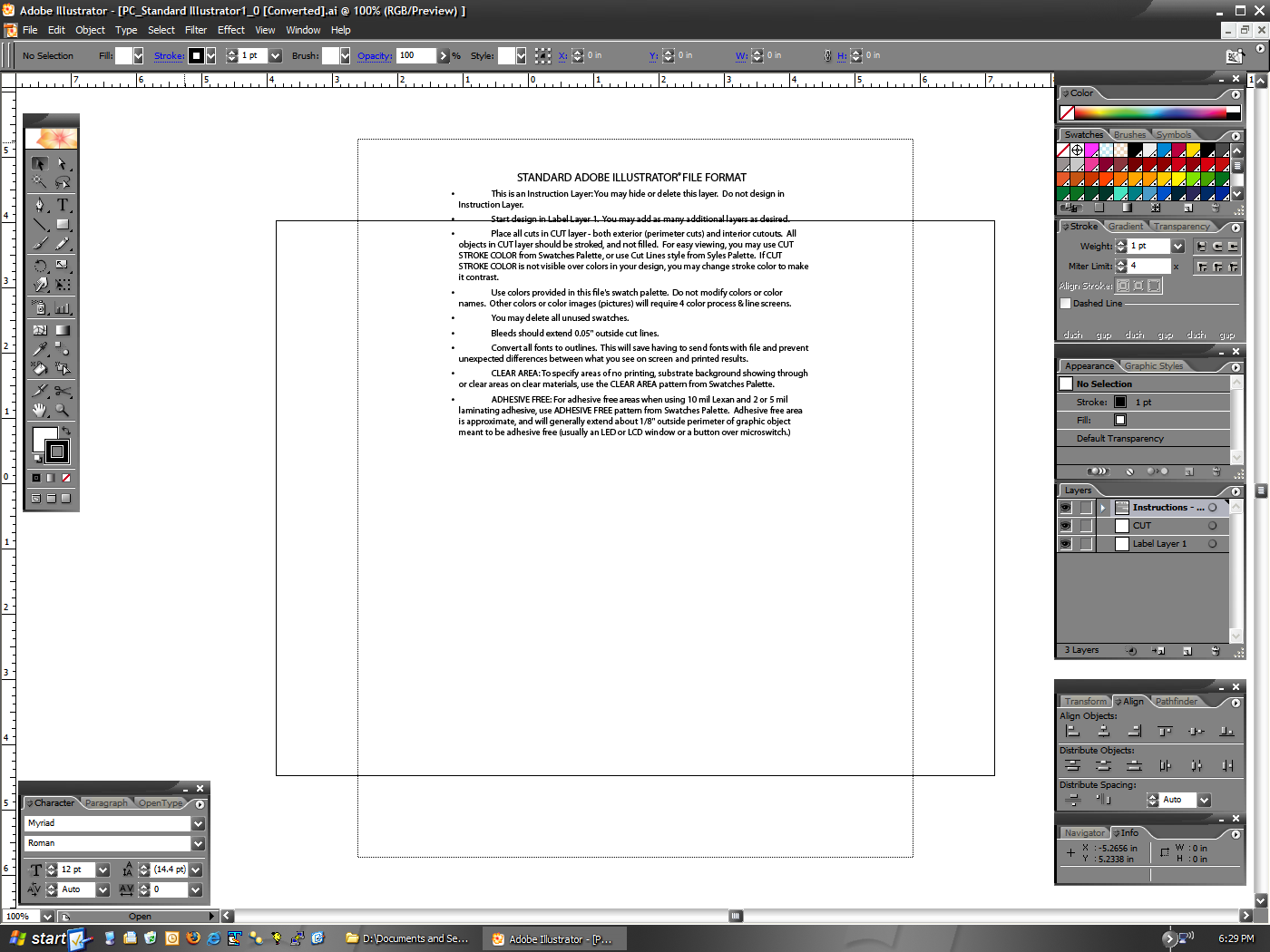
Can any of you tell me what I need to do in order to get everything rotated properly so I can lay out my label on a landscape page? I’m not sure if this is something I need to worry about or not, but it really doesn’t seem right to me…
Or, if you can point me to an appropriate resource which explains this, that’d be great too. I just don’t understand what’s going on.
Thanks!
make sure your page setup is set to letter size and marked as horizontal or landscape. That’s the only way I’ve ever seen that happen unless of course it’s trying to fool you into thinking its a dotted line to specify tiling when it really isn’t. At worst…make a new document that is 8.5×11 horizontal and make sure that page setup matches.Then just copy and paste or drag your info over.
if you try changing the page setup…do that and then when you go back to the document and click the page tiling tool (located under the little hand tool i believe) and click on the artboard is should let you move it to line up exactly with the sides of the artboard. Page tiling is always setup by default to conform to the paper size you specify to print on….so maybe check your prefs too if that doesn’t work.
Nope, none of that does it. I can move the page around, but not adjust it any. Nothing in the preferences either…
Try grabbing the file, you’ll see what I’m talking about. And I can’t really make a new one, because I need the palette they’ve defined.
well i suppose you could always create it and then group and rotate it….to print portrait. If you can’t change the tile just change the artboard.
i dunno…i’ll play with it more tomorrow and ask around…if I figure it out i’ll let you know.
Just FYI, it’s a matter of two things. One, change the artboard to the proper orientation. Two, entering the Print dialog and changing the paper to match the artboard.
Then… It’s done. :)
Ok, this probably won’t be any help at all, but…this is a problem that I have often in Illustrator. I haven’t used it much in the last few years, and I don’t seem to see anything around the Adobe site that would help you, but if I remember correctly, there’s more than one place that you need to specify the page dimensions/setup. Like under Page Setup, and also under Document Setup, and maybe one other similar place. And all of them need to have the horizontal layout selected and the same page dimensions or else that dotted line shows up like that, all outside of your page. And to be honest, I’ve never understood the importance of the dotted line anyway, because as long as you design in the solid page lines, it’ll print out ok. The dotted lines are just there to annoy you. You can turn them off. :) That might not be an accurate enough answer for what you’re doing, but I’ve only really ever used Illustrator to make illustrations to import into Photoshop or Quark, so output didn’t matter that much.
So…I dunno. Like I said, that probably doesn’t help much, but that’s all I got. :)
Just FYI, I got it sorted out. It’s a bit different in a new version of Illustrator (CS or CS2, in this case).
First, make the artboard the orientation you want. Second, File -> Print, then set the paper accordingly. Hit done.
And…. It’s done. :)